Ubuntu Control Center Makes Using Ubuntu Easier – How-To Geek

Users who are new to Ubuntu might find it somewhat difficult to configure. Today we take a look at using Ubuntu Control Center which makes managing different aspects of the system easier.

About Ubuntu Control Center

A lot of utilities and software has been written to work with Ubuntu. Ubuntu Control Center is one such cool utility which makes it easy for configuring Ubuntu. The following is a brief description of Ubuntu Control Center:

Ubuntu Control Center or UCC is an application inspired by Mandriva Control Center and aims to centralize and organize in a simple and intuitive form the main configuration tools for Ubuntu distribution. UCC uses all the native applications already bundled with Ubuntu, but it also utilize some third-party apps like “Hardinfo”, “Boot-up Manager”, “GuFW” and “Font-Manager”.

Ubuntu Control Center

Here we look at installation and use of Ubuntu Control Center in Ubuntu 10.04.

First we have to satisfy some dependencies. You will need to install Font-Manager and jstest-gtk (link below)…before installing Ubuntu Control Center (UCC). Click the Install Package button. Continue reading

Access Windows Home Server from an Ubuntu Computer on your Network – How-To Geek

If you’re a Windows Home Server user, there may be times when you need to access it from an Ubuntu machine on your network. Today we take a look at the process of accessing files on your home server from Ubuntu.

Note: In this example we’re using Windows Home Server with PowerPack 3, and Ubuntu 10.04 running on a home network.

Access WHS from Ubuntu

To access files on your home server from Ubuntu, click on Places then select Network.

sshot-2010-06-05-[20-11-11]

You should now see your home server listed in the Network folder as well as other Windows machines…double-click the server to access it. Continue reading

Make a Drive Image Using an Ubuntu Live CD – How-To Geek

Cloning a hard drive is useful, but what if you have to make several copies, or you just want to make a complete backup of a hard drive? Drive images let you put everything, and we mean everything, from your hard drive in one big file.

With an Ubuntu Live CD, this is a simple process – the versatile tool dd can do this for us right out of the box.

sshot-9 Continue reading

PHP-GTK NEWSLETTER & AGENDA – Invia Email e SMS dal tuo PC

PHP-GTK NEWSLETTER v2 b68

PHPGTK-AGENDA [b8] per WINDOWS e LINUX

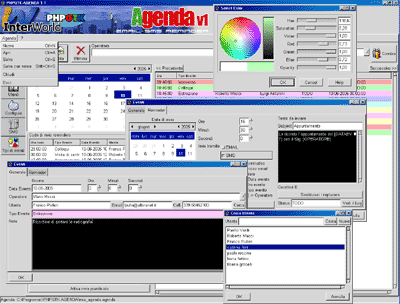
Prima Stable 😉 PHPGTK AGENDA nasce per rispondere alle esigenze di chi ha bisogno di gestire in modo pratico i propri appuntamenti. Tramite PHPGTK AGENDA si dispone di una leggera rubrica nella quale potrete memorizzare i nomi, le email e i cellulari dei vostri contatti, amici, parenti, clienti o piu' in generale “Utenti”.

Continue reading

Chmod

Identificazione del tipo di file
quando eseguiamo un #ls -l il primo carattere mostrato identifica il tipo si file

b – block device (es hard disk)
c – character device (file che interpreta caratteri)
p – pipe device (mezzo di interscambio di informazione)
d – directory
l – link
– regular file (contiene informazioni)

poi abbiamo i nove caratteri che identificano i permessi

poi abbiamo le informazioni deguenti:
dimensione
proprietario
gruppo

major cioè definisce il tipo di device es. (3 definisce le console)
minor è il sottogruppo del tipo definito dal major ed è anche incrementale es.(0 indica la tty0)


Permessi sui file:

USR GRUP OTHR
1 234 567 8910 – CHI HA CREATO IL FILE – GRUPPO DI RIFERIMENTO
r   r   r      diritto di lettura
w   w   w     diritti di scrittura
x   x   x    diritto di esecuzione

Proviamo a creare un file
touch stefano
appena creato di default ha i permessi 644

andiamo a vederne i permessi
ls -l

CAMBIAMO I PERMESSI DEI FILE
chmod

vediamo i valori:
4 Read
2 Write
1 Execute

esempio:
UTENTE vogliamo dare W e R = 2 + 4 = 6
GRUPPO vogliamo dare R e X = 4 + 1 = 5
OTHER  vogliamo dare nulla        = 0

quindi cambiamo i permessi in
chmod 650 nomefile

Altro modo possiamo cambiare i permessi in questo modo:
U tente
G ruppo
O thers
A ll

quindi possiamo dare il seguente comando
per aggiungere EXECUTE per l’utente:
chmod u+x nomefile

per dare permessi a tutti di tutto
chmod a+wrx nomefile

in altro modo
chmod +x nomefile

Come cambiare il proprietario del file
‘chown’ ‘nuovo proprietario’ ‘nomefile’
chown utente nomefile

Per cambiare il Gruppo:
chgrp


Con chmod come faccio a dare i permessi diversi a cartelle e files? Per esempio ho la cartella www con dentro tutto il sito web, dovrei mettere i permessi a 775.

find /cartella/di/partenza -type d -exec chmod 775 {} \;
find /cartella/di/partenza -type f -exec chmod 664 {} \;

-find lo usi per cercare i file appunto 😛 se gli passi il -type puoi filtrare solo una tiologia di file (  f per i file semplici d per directory l per i link simbolici e così via ) con il parametro -exec puoi specificare un comando da eseguire con il paratro {}; che indica il risultato della ricerc

Quando la tua ricerca ottiene la corrispondenza esatta, combinala con altri comandi per eseguire azioni specifiche. Puoi combinare il comando find con altri comandi così che, una volta individuato il file in oggetto, vengano compiute azioni specifiche. Per separare il comando find dal secondo comando, utilizza il parametro -exec, quindi termina la stringa con la sequenza di caratteri {} \;.

find ./ -type f -perm 777 -exec chmod 755 {} \;
  • Questo comando di esempio esegue una ricerca di tutti i file presenti nella directory corrente (incluse tutte le sottocartelle) che hanno un permesso di accesso 777. Quindi, per ognuno dei file individuati, verrà eseguito il comando chmod per impostare il nuovo codice di accesso in 755.