Removing ^M characters on ubuntu in VIM

It took me a while to figure out how to get rid of pesky ^M characters in VIM on ubuntu. ^M in VIM can be manipulated as it is an \r character. Often times other developers would edit python files in gedit or notepad and ^M characters would be inserted. I could not simply %s/\^M//g as “^M” was not a recognized character.

The fix is really quite simple and I was frustrated it took me so long to find, but in case it gets to anyone else – the ^M is a line feed character that is inserted by gedit(among other editors) sometimes. In VIM, it shows up as ^M, but it is actually a “\r” character. So, doing a replace for \r characters will remove the ^M

%s/\r//g


How to mount Moto G on Ubuntu using MTP

Moto G is an Android smartphone that does not have a microSD slot. So, the storage of the smartphone cannot be extended. If you want to transfer files between your Ubuntu computer and the Moto G, there are 3 possible ways to do that: FTP over wireless, PTPover USB and MTP over USB.

If your Ubuntu computer has wireless, I highly recommend using FTP over wireless. It is convenient (no wires!), offers good transfer speed and the entire /sdcard contents are available for read and write.

If your Ubuntu computer does not have wireless, then your next option is to use a micro-USB-to-USB cable. The choices here are PTP and MTP. You can enable and switch between the two after you connect Moto G to your computer using a USB cable. If you enable PTP, then Moto G is automatically mounted as a partition in Nautilus. However, you will only be able to see the /sdcard/DCIM and /sdcard/Pictures directories. If you are transferring photos, then this option offers good transfer speed.

If your Ubuntu computer does not have wireless and you still want to read and write to the contents of /sdcard then the option left to you is MTP. Note that with MTP, Moto G takes a really long time to mount and the transfer speeds are really really low. It can take ages to transfer even a small file. You have been warned! 🙂

There are many solutions offered online to mount the contents of /sdcard using MTP.This solution is the only one that worked for me:

  • Install the MTP packages:
$ sudo apt-get install mtp-tools mtpfs
  • Connect Moto G using a USB cable to your computer. Make sure MTP is selected, and not PTP. 
  • Find out the vendor ID and product ID of Moto G using mtp-detect. For my smartphone I got:
$ sudo mtp-detect
Unable to open ~/.mtpz-data for reading, MTPZ disabled.libmtp version: 1.1.3

Listing raw device(s)
Device 0 (VID=22b8 and PID=2e82) is UNKNOWN.
Please report this VID/PID and the device model to the libmtp development team
   Found 1 device(s):
   22b8:2e82 @ bus 1, dev 12
Attempting to connect device(s)
Android device detected, assigning default bug flags

You need to press Ctrl+C to stop the command. For the Moto G, you can see that the vendor ID is 22b8 and product ID is 2e82.

  • Open a new file /etc/udev/rules.d/51-android.rules using sudo and add this line:
SUBSYSTEM=="usb", ATTR{idVendor}=="22b8", ATTR{idProduct}=="2e82", MODE="0666"
  • Restart the USB service and create a directory to mount the Moto G:
1
2
3
4
$ sudo service udev restart
$ sudo mkdir /media/motog
$ sudo chmod a+rwx /media/motog
$ sudo adduser your-user-name fuse
  • Open the /etc/fuse.conf file as sudo and uncomment the line foruser_allow_other 
  • Restart your computer. Connect back the Moto G to the computer.
  • You can now mount the /sdcard of your Moto G using this command:
$ mtpfs -o allow_other /media/motog/

Note that the mounting operation is slow and might take about a minute.

  • You can find all the directories and files in /sdcard of Moto G in /media/motog. You can read and write to these directories. 
  • To unmount use this command:
$ fusermount -u /media/motog/

That is it! You may want to create aliases for the mount and unmount command to make it easy to use 🙂

Note: You will not get the USB mass storage option in Moto G since that can be provided for external storage, not for partitions from which the Linux kernel is currently running. And in any case, you will need root access on the phone to touch those directories.

Tried with: Moto G and Ubuntu 12.04

Using PHP to change file permissions on the webserver

Symptom:

  • “Permission Denied” When trying to work with your site over FTP.
  • You cannot modify directories inside the /files folder that were created by server program.

Solution:

  • Tell Apache to give you back control of your files.

One side effect of having files created by server program (eg the image module), is that your user account might not have ownership of them any more. And you might not be able to delete the or move them around.

There is a workaround though. You can create a small PHP script containing the commands you want to carry out and upload it to the server. Once uploaded, you can run it from your web browser by entering the URL for it. The script will run as the user account the webserver runs as. Be sure to remove the script after you have used it though.

simple case:

Important: this code should only be used if you remember to delete it immediately after use. As above, its use may put your site into an insecure state.


<?php
file_fix_directory(dirname(__FILE__));
function file_fix_directory($dir, $nomask = array('.', '..')) {
if (is_dir($dir)) {
// Try to make each directory world writable.
if (@chmod($dir, 0777)) {
echo "<p>Made writable: " . $dir . "</p>";
}
}
if (is_dir($dir) && $handle = opendir($dir)) {
while (false !== ($file = readdir($handle))) {
if (!in_array($file, $nomask) && $file[0] != '.') {
if (is_dir("$dir/$file")) {
// Recurse into subdirectories
file_fix_directory("$dir/$file", $nomask);
}
else {
$filename = "$dir/$file";
// Try to make each file world writable.
if (@chmod($filename, 0666)) {
echo "<p>Made writable: " . $filename . "</p>";
}
}
}
}
closedir($handle);
}
}
?>


How to install LAMP server on Ubuntu

LAMP, which stands for Linux, Apache, MySQL and PHP, is a popular open-source web server platform on Linux. The LAMP stack has been enjoying tremendous popularity among website administrators, due to its stability, open-source nature, and excellent community support.

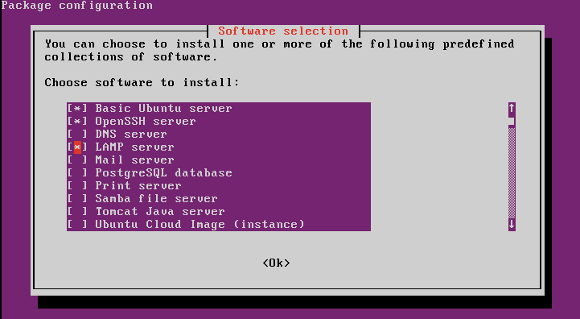
To install LAMP server on Ubuntu, you can use a command line tool called taskselwhich allows you to (un)install various tasks, each of which is basically a collection of related packages. So just run tasksel command, and choose “LAMP server” option among a list of available tasks. The rest of installation procedure will be taken care of by the tool.

While tasksel is installed by default on Ubuntu Server, it is not available on vanilla Ubuntu Desktop. So if you are using Ubuntu Desktop, you need to install it first.

$ sudo apt-get install tasksel

Then go ahead and launch tasksel to install LAMP server on your system.

$ sudo tasksel

Install LAMP server on Ubuntu

On tasksel screen, any pre-installed task(s) will have asterisk mark next to its name. All you have to do is check “LAMP server” option, press TAB to move to “OK”, and press “ENTER”.

Once installation is completed, PHP-enabled Apache HTTP server as well as MySQL server will be up and running on your host, and are set to start automatically upon reboot.

Fonte:http://xmodulo.com

Mysqldump – backup di database MySql

Eseguire il dump di tutti i DB presenti:

mysqldump -u root -p --all-databases > alldb.sql
Ripristinare tutti i DB presenti:
mysql -u root -p < alldb.sql
Eseguire il dump solo di certe tabelle presenti in un db:
mysqldump -u root -p 'db_name' 'table_1' 'table_2' 'table_n' > 'nome_file_da_salvare.sql'


Ignorare alcune tabelle

mysqldump -u root -p --lock-tables --databases miodb --ignore-table=miodb.tab1 --ignore-table=miodb.tab2 --ignore-table=miodb.tab3 > backup_tables_miodb.sql


scp – Copia di files attraverso SSH

SCP protocol

The SCP protocol is a network protocol, based on the BSD RCP protocol,[1] which supports file transfers between hosts on a network. SCP uses Secure Shell (SSH) for data transfer and uses the same mechanisms for authentication, thereby ensuring the authenticity and confidentiality of the data in transit. A client can send (upload) files to a server, optionally including their basic attributes (permissions, timestamps). Clients can also request files or directories from a server (download). SCP runs over TCP port 22 by default. Like RCP, there is no RFC that defines the specifics of the protocol.

How it works

Normally, a client initiates an SSH connection to the remote host, and requests an SCP process to be started on the remote server. The remote SCP process can operate in one of two modes: source mode, which reads files (usually from disk) and sends them back to the client, or sink mode, which accepts the files sent by the client and writes them (usually to disk) on the remote host. For most SCP clients, source mode is generally triggered with the -f flag (from), while sink mode is triggered with -t (to).[2] These flags are used internally and are not documented outside the SCP source code.

Remote to remote mode

In remote-to-remote secure copy, the SCP client opens an SSH connection to the source host and requests that it, in turn, open an SCP connection to the destination. (Remote-to-remote mode does not operate by opening two SCP connections and using the originating client as an intermediary). It is important to note that SCP cannot be used to remotely copy from the source to the destination when operating in password or keyboard-interactive authentication mode, as this would reveal the destination server’s authentication credentials to the source. It is, however, possible with key-based or GSSAPI methods that do not require user input.[2]

Issues using talkative shell profiles

SCP does not expect text communicating with the ssh login shell. Text transmitted due to the ssh profile (e.g. echo “Welcome” in the .bashrc file) is intrepreted as an error message, and a null line (echo “”) causes scp to deadlock waiting for the error message to complete.[2]

SCP program

The SCP program is a software tool implementing the SCP protocol as a service daemon or client. It is a program to perform secure copying. The SCP server program is typically the same program as the SCP client.

Perhaps the most widely used SCP program is the command line scp program, which is provided in most SSH implementations. The scp program is the secure analog of the rcp command. The scp program must be part of all SSH servers that want to provide SCP service, as scp functions as SCP server too.

Some SSH implementations provide the scp2 program, which uses the SFTP protocol instead of SCP, but provides the very same command line interface as scpscp is then typically a symbolic link to scp2.

Typically, a syntax of scp program is like the syntax of cp:

Copying file to host:

scp SourceFile user@host:directory/TargetFile

Copying file from host:

scp user@host:directory/SourceFile TargetFile
scp -r user@host:directory/SourceFolder TargetFolder

Note that if the remote host uses a port other than the default of 22, it can be specified in the command. For example, copying a file from host:

scp -P 2222 user@host:directory/SourceFile TargetFile

As the SCP protocol implements file transfers only, GUI SCP clients are rare, as implementing it requires additional functionality (directory listing at least). For example, WinSCP defaults to the SFTP protocol. Even when operating in SCP mode, clients like WinSCP are typically not pure SCP clients, as they must use other means to implement the additional functionality (like the ls command). This in turn brings platform-dependency problems.

Fonte: en.wikipedia.org

Debian and Ubuntu Linux: Add a User To Group www-data ( Apache Group )

How do I a user to the Apache group called www-data under Ubuntu or Debian Linux server operating systems?

You need to use the useradd command to add a user to the group called www-data.

Add a new user to the www-data group

In this example, add a new user called vivek to the www-data group, enter:

 
sudo useradd -g www-data vivek

### set the password for vivek user ###
sudo passwd vivek

To verify new settings, enter:

id vivek
groups vivek

The group name www-data is the user’s initial login group i.e. vivek has been added to www-data primary group only.

www-data supplementary groups membership

To add a new user called vivek to supplementary groups called www-data and ftp, enter:

 
sudo groupadd vivek
sudo useradd -g vivek -G www-data,ftp vivek
sudo passwd vivek

To verify new settings, enter:

id vivek
groups vivek

Add a existing user to www-data group

Type the following command to add an existing user called vgite to the www-data group, enter:

 
sudo usermod -a -G www-data  vgite
id vgite
groups vgite

Above command will add the user vgite to the supplementary group called www-data. Use -a option only with the -G option.

Creare apps Android con Eclipse

La seguente guida vuole mostrare i primi passi per realizzare un ambiente di sviluppo per applicazioni Android basato sul software Eclipse. La guida è valida per sistemi operativi GNU / Linux, Microsoft Windows e OSX.

Eclipse è un ambiente di sviluppo integrato multi-linguaggio e multipiattaforma. Ideato da un consorzio di grandi società quali Ericsson, HP, IBM, Intel, MontaVista Software, QNX, SAP e Serena Software, chiamato Eclipse Foundation sullo stile dell’open source.
Eclipse può essere utilizzato per la produzione di software di vario genere, si passa infatti da un completo IDE per il linguaggio Java (JDT, “Java Development Tools”) a un ambiente di sviluppo per il linguaggio C++ (CDT, “C/C++ Development Tools”) e a plug-in che permettono di gestire XML, Javascript, PHP e persino di progettare graficamente una GUI per un’applicazione JAVA (Eclipse VE, “Visual Editor”), rendendo di fatto Eclipse un ambiente RAD.

1. Download e installazione di Eclipse
Per prima cosa è necessario prelevare ed installare il software.
Il software è ospitato presso il server centrale del programma, raggiungibile al seguente url:http://www.eclipse.org/downloads/
Sarà necessario scaricare la versione “Classic” ovvero la versione “vergine” del software.

The classic Eclipse download: the Eclipse Platform, Java Development Tools, and Plug-in Development Environment, including source and both user and programmer documentation

Nel momento in cui viene scritta questa guida l’ultima versione disponibile è la 4.2.2. La versione scaricata dal server ovviamente sarà in formato eseguibile precompilato.

2. Primo avvio e intallazione degli ADT plugin
Avviamo Eclipse (d’ora in avanti lo chiameremo IDE).
Per installare il plugin Eclipse ADT basta seguire questi tre semplici passi:

    1- Andate su Help/Install new software dalla barra dei menu
    2- Selezionate “Add” e specificate il nome del repository (per esempio “ADT plugin”)
    3- Inserite il seguente link https://dl-ssl.google.com/android/eclipse nel campo denominato “location folder”

Fatti questo vi verrà chiesto cosa installare dal repository tra:

    – Developer tools
    – Ndk plugins

Per i principianti sono sufficienti i Developer tools. Selezionati quest’ultimi basterà premere avanti finché l’operazione e l’installazione di essi non sarà conclusa. Al termine dell’installazione verrà richiesto il riavvio (operazione automatica) dell’IDE.

3. Selezione ed installazione API sulla quale basare l’app
Per selezionare la versione API sulla quale basare la nostra app sarà sufficiente spostarsi sul menu alla voce:
Window >> Android SDK manager
Selezionando questa voce otteniamo una schermata simile alla seguente:

API_ECLIPSE.png

Nel momento in cui scrivo la guida le API più recenti sono le 4.2.2, ovviamente se volete sviluppare una app per il vostro tablet/smartphone dovrete selezionare le API adeguate. Una volta selezionate, procedere con l’installazione.

4. Creazione di un nuovo progetto
Per la creazione della nostra prima app è necessario generare un progetto spostandosi nel menu alla voce:
File >> New >> Project
e nella categoria “Android”, selezionate “Android Application Project”.

android_project.png

In seguito vi verranno chieste informazioni varie quali nome dell’applicazione, nome del progetto, nome del pacchetto e le API minime/massime di compatibilità. Nell’esempio sotto riportato si impone un sistema Android superiore o uguale al 4.0.

android_project_sp1.png

Successivamente vengono chieste altre informazioni quali il tema da adottare e l’icona della app.
Arrivati a questo punto avete la massima libertà di programmazione della vostra applicazione.

5. Creazione/Esportazione dell’apk
Una volta terminata la vostra applicazione sarà possibile crearne l’eseguibile con la funzione Export (nel menu File).

android_exp1.png

Successivamente viene chiesto quale progetto esportare, e vi verrà richiesto di creare una keystore. La posizione del file può essere a vostra scelta, l’importante è che il file si chiami .keystore e che contenga una password di almeno 6 caratteri.
Successivamente vi verrà richiesto di inserire tutti i dati relativa all’app e all’autore (NB.inserite la stessa password inserita per generare il file .keystore).
In fine verrà chiesta la posizione dove creare il file apk. Se il progetto contiene errori di compilazione, ovviamente, l’apk non verrà generato.

Prossimamente proseguirò questa discussione ampliando la guida.
Hola

Da seguire su: Linux MX

Server di stampa e scansione con Raspberry

Categoria: Progetti
Pubblicato Lunedì, 24 Giugno 2013 22:40
Scritto da Christian – Linux Ludus Villafranca (VR)

Se avete più di un pc magari e una MPF o semplicemente stampanti escanner e siete stufi di doverli ogni volta collegare per stampare e o scansionare qualcosa, allora siete come me. Ciò che andrò a descrivere èvalido per qualsiasi periferica supportata da cups e da sane, ovvero i server di stampa e scansione di linux.

Requisiti generali:

  • raspberry funzionante, ovvero complessivo di SD.
  • sistema operativo (xbian, raspxbmc,openelc,raspbian) quello che più vi piace, io ho usato xbian
  • collegamento di rete (eth o wifi)

Per iniziare è opportuno aver configurato il raspberry per l’accesso in rete.

Stampante di rete

Configurare CUPS

Per prima cosa è opportuno installare cups che si proterà come dipendenza anche sane, usando il seguente comando:

1
sudo apt-get install cups

Il passo successivo sarà quello di aggiungere l’utente della vostra minidristro al gruppo lpdamin (amministratori gruppo stampa), nel mio caso xbian
usermod -aG lpadmin xbian
Questo passaggio è importante dal momento che noi necessitiamo dei permessi di root per aggiungere stampanti.
Ora dovremmo cambiare le impostazioni di accesso a cups per accedervi dalla rete, si deve modificare il file di configurazione di cups:

1
sudo nano /etc/cups/cupsd.conf

Per permettere l’accesso remoto alla interfaccia web di cups si deve quindi modificare il file nel seguente modo:
Cambiare Listen localhost: 631 con Port: 631
Se la vostra rete non è accessibile dall’esterno potete permettere a tutti di accedere a cups con il comando:

1
2
$ sudo cupsctl --remote-admin
$ sudo cupsctl --remote-any

evitando di editare il file sopra menzionato.
Quello che stiamo facendo è dire a cups quali IP della rete si potranno collegare, nel nostro caso tutti, per completare la configurazione è necessario riavviare cups:

1
$ sudo /etc/init.d/cups restart

Aggiungere stampante:

Con il vostro browser puntate all’IP del vostro RaspPI con la porta 631, esempio:

 https://192.168.1.169:631

Andate su amministrazione e poi cliccate su aggiungi stampante, vi verrà chiesto di inserire user e password dell’utente che state utilizzando, poi potrete selezionare la vostra stampante.
Ricordatevi di selezionare le opzioni di condivisione di rete e anche la stampa da internet.
Scanner di rete:

Come detto in precedenza, qualsiasi periferica riconosciuta da sane è facilmente gestibile da remoto, andando a dire al server saned chi può accedere alla periferica collegata editando il file, sul raspberry:

1
/etc/sane.d/saned.conf

aggiungendo semplicemente gli IP ammessi alla connessione al file.
Infine, accertiamoci che sane sia avviato al boot, editando il file:

1
/etc/default/saned

cambiando la linea impostando su yes come sotto:

1
RUN=yes

Dopo aver configurato la parte server dobbiamo configurare la parte client sul nostro computer, al quale diremo quale IP in rete condivide lo scanner modificando il file:

1
/etc/saned/net.conf

aggiungendo l’IP del raspberry
Ora la configurazione è terminata e potrete godere dei vantaggi di una multifunzione in rete.

————————————————–

Si ringrazia Linux Ludus Villafranca (VR), nello specifico Christian, per la guida.

Link: http://www.linuxludus.it/

Descrizione: LinuxLudus è il LUG di Villafranca di Verona. Il nostro gruppo non tratta unicamente il Sistema Operativo GNU/Linux ma anche altri Sistemi Operativi liberi ed in generale tutto il FOSS (Free Open Source

Apache Virtual Hosts in Ubuntu in 7 easy steps

In this tutorial I’ll walk you through setting up 3 Apache virtual hosts running on a single Ubuntu server. An Apache virtual host, as explained by Apache, refers to the practice of running more than one web site (such as www.company1.com and www.company2.com) on a single machine. Virtual hosts can be “IP-based” or “name-based”. By default, Ubuntu already has this capability enabled, so things are much easier to configure these days. Enough with the intro, this is how you do it:

LAST UPDATE:
 It's May 2014 and Ubuntu 14.04 has been out for a little while.
Navigate to /etc/apache2/sites-available and see what's there. 
In the past the default website file has just been named "default" while later it was "default.conf" yet now it is "000-default.conf."
 "sudo a2dissite 000-default.conf" disables the default web site, allowing you to promote another one in its place.

We are going to create 3 sites, site1.com, site2.com and site3.com

1. Create the folders that will host your new sites. By default, Apache in Ubuntu serves from /var/www. So create these:

mkdir /var/www/site1
mkdir /var/www/site2
mkdir /var/www/site3

2. Copy the current default setting found in /etc/apache2/sites-available/default and name it the same as your new site.

cp /etc/apache2/sites-available/default /etc/apache2/sites-available/site1
cp /etc/apache2/sites-available/default /etc/apache2/sites-available/site2
cp /etc/apache2/sites-available/default /etc/apache2/sites-available/site3

3. Edit the new config files for each site using your preferred text editor. Add the line ServerName server1 right below the ServerAdmin line and change both DocumentRoot and Directory to point to your new sites.
This is what it should look like (you’ll do exactly the same for each of your 3 new sites, repeat this step for as many new sites as you’ll be creating):

/etc/apache2/sites-available/site1

<VirtualHost *:80>
  ServerAdmin webmaster@localhost
  ServerName YOURDOMAIN.YOU
  DocumentRoot /var/www/YOURDOMAINFOLDER (without slash trail)
 <Directory />
  Options FollowSymLinks
  AllowOverride None
 </Directory>
 <Directory /var/www/YOURDOMAINFOLDER/> (WITH slash trail)
  Options Indexes MultiViews
  AllowOverride None
  Order allow,deny
  allow from all
 </Directory>
</VirtualHost>

4. After you have edited the config files for each of the 3 or how many virtual hosts you are creating, just tell Apache to start serving the new domains and stop serving the default:

sudo a2ensite site1
sudo a2ensite site2
sudo a2ensite site3
sudo a2dissite default
note: (a2ensite, a2dissite - enable or disable an apache2 site / virtual host)

5. Now reload apache and you should be able to get to each of your new domains:

sudo /etc/init.d/apache2 reload

6. At this point the virtual host setup is done, all that is left is to tell the server that our-test-site.local should be resloved to 127.0.0.1.
We do that by typing

sudo gedit /etc/hosts

and adding 127.0.0.1 our-test-site.local after the localhost (line 1).

The entire hosts file should look like

127.0.0.1   localhost
127.0.0.1   YOURDOMAIN.YOU
127.0.1.1   ubuntu-vm

7. Save it, close the editor and finally type

sudo /etc/init.d/apache2 restart

Pay attention… to the user’s permissions !!!

Cercare e sostituire ricorsivamente una parola in più file


Il sistema operativo Linux offre molteplici strumenti per la gestione o la modifica dei file; in questo articolo mostrerò come utilizzare alcuni comandi per sostituire una o più parole all’interno di un file di testo.

Un comando piuttosto utile quando si deve sostituire una o più parole in alcuni file è questo:

sed -i ‘s/parola1/parola2/g’ *.txt

in questo modo la parola1 verrà sostituita dalla parola2 in tutti i file di testo presenti nella directory corrente.

Se però dovessimo eseguire questa sostituzione anche nei file presenti in alcune sotto cartelle allora il comando diventa:

find ./ -type f -exec sed -i ‘s/parola1/parola2/g’ {} \;

in questo caso ho fatto a meno del filtro per i file di tipo .txt e quindi verranno presi in considerazione tutti i file presenti nella directory corrente e nelle sue sottodirectory.

Con il comando find che è stata usata l’opzione “-exec”  che permette di eseguire un comando ogni volta che viene trovato un file che rispetta le regole impostate per la ricerca.

Nel caso precedente la ricerca comprende tutti gli elementi di tipo “file” ed esclude le directory.

Tutto quello che segue la direttiva “-exec” costituisce il comando da eseguire e i suoi parametri, fino al carattere “\;” che indica la fine della stringa di comando.

Un altro elemento fondamentale è il simbolo “{}” che indica il nome attuale del file trovato e che, in questo modo, essere usato come parametro dal comando che si vuole eseguire.

Nel comando precedente le parentesi graffe “{}” sono stati quotate e il carattere di fine comando è stato preceduto con uno slash “” per proteggere questi simboli dall’espansione della shell.

Il comando viene eseguito nella directory di partenza, quindi se il comando inserito prevede un output occorre tenerne conto.

Consiglio di cercare prima la parola, giusto per verificare cosa verrà trovato e sostituito:

find ./ -type f -exec grep -r “parola1” {} \;

Oppure si può usare il comando:

find ./ -type f -print0 | xargs -0 grep “parola1”

in questo modo verranno visualizzate tutte le righe che contengono la stringa indicata.

In particolare è stato usata la direttiva “-print0” che permette di avere come output il nome completo terminato da un carattere nullo. In questo modo la stringa prodotta può essere interpretata correttamente dal programma seguente.

Infatti l’output del comando find è connesso con un pipe al comando xargs il cui parametro “-0” indica che i nomi dei file ricevuti come input finiscono con un carattere nullo.

Il comando “xargs” si occupa di ricevere i nomi dei file ed eseguire il comando “grep”che a sua volta usa i parametri passati da xargs.

Se invece si vuole solo veder visualizzato il nome del file che la contiene, il comando è:

find ./ -type f -print0 | xargs -0 grep -l “parola1”

Il parametro “-l” indica che come output avremo la lista dei nomi dei file, ma non le linee, nelle sono state trovate le corrispondenze.

Faccio notare che in tutti i comandi elencati è stato ipotizzato che la ricerca avvenisse nella directory attuale e in tutte le sue sub-directory, ma se volessimo cercare in una cartella qualsiasi dovremo inserire il percorso ( relativo o assoluto):

find /home/user/ -type f | xargs grep -l “parola1”

Infine, se non fosse necessario usare dei parametri complessi per la ricerca dei file e si volesse solo ricercare ricorsivamente una parola o una frase all’interno dei file in più subdirectory, basta usare molto più semplicemente il comando grep con l’opzione “-r”:

grep “this text” *.php -r

In questo modo verrà cercata la stringa “this text” in tutti i file “.php” presenti nella directory attuale e in tutte le sue sotto directory.

Edit binary files in Linux

In this post I’ll mention how to edit binary files using vi and the utility xxd that is a part of vi.

vi in hex mode

Use the xxd command by typing

:%!xxd

Edit hex data. Quit hex mode with

:%!xxd -r

Using xxd command

You can use the xxd command outside vi. If you have an existing binary file, you can convert it to hex

xxd -g 1 file.bin > file.hex

You can then edit the hex and convert it back to binary

xxd -r file.hex > file.bin

One nice little thing that xxd does is to produce a C static array definition, very convenient for embedding resource files

xxd -i file.bin

Comprimere e decomprimere files: uso di tar.gz

Per estrarre i file .tar.gz
tar -xpvzf nomefile

Si ricordi i seguenti parametri per il comando
tar

  • c: crea archivi
  • x: li decomprime
  • v: scorre la lista dei file, generalmente evitato nella (de)compressione in quanto potrebbe produrre un lungo output inutile
  • z: comprime/decomprime in formato gzip
  • j: comprime/decomprime in formato bzip2
  • f: obligatorio per comprimere
  • p: preserva i permessi

Specifichiamo quindi l’uso di tar per creare un archivio:
tar -cvzpf nome_archivio.tar.gz /percorso_directory_da_archiviare

Escludere file:

IMPORTANTE:
Nel caso in cui si aggiungano le cartelle da escludere, il percorso deve essere completo del ./ iniziale, NON deve essere presente il / finale.
Se non funziona, verificare di inserire la cartella da escludere SENZA ./ iniziale ne finale.

tar --exclude ./percorso/del/file_da_escludere -cvzpf nome_archivio.tar.gz ./percorso_directory_da_archiviare

Escludere determinate estensioni:
tar --exclude ‘*.estensione_da_escludere’ -cvzpf nome_archivio.tar.gz /percorso_directory_da_archiviare

Escludere determinate directory:
tar --exclude ./percorso/della/directory_da_escludere -cvzpf nome_archivio.tar.gz /percorso_directory_da_archiviare

P.S. ovviamente se i file e/o determinate estensioni e/o determinate directory dovessero essere molteplici, potrete utilizzare tutti gli --exclude che desiderate!

Per esempio:
tar --exclude ./_backup_db --exclude ./_backup_site --exclude ./civicrm_custom --exclude ./wp-admin --exclude ./wp-includes --exclude ./.git --exclude wp-content -cvzpf my-file-backup.tar.gz ./

Oppure possiamo racchiuderli tutti tra parentesi:
tar -cvzpf my-file-backup.tar.gz ./ --exclude={./_backup_db,./_backup_site,./.git,./wp-admin,./wp-content,./wp-includes}

Modificare le immagini con ImageMagick

Informazioni sull’ immagine

Per ottenere le informazioni relative alle dimensioni dell’immagine

identify [nome del file]

Si sa che dall’avvento delle fotocamere digitali tutti noi siamo diventati dei provetti fotografi e per dimostrare ciò non manca mai l’occasione per scattare decine e decine di fotografie “Tanto poi se non mi piacciono le cancello!”. Ci si ritrova così con il computer pieno zeppo di fotografie, magari ad alta risoluzione, che occupano molto spazio.

Grazie alla crescente popolarità dei Social Network tipo Facebook o MySpace è prassi condividere le proprie fotografie con parenti e amici. Per agevolare il caricamento delle fotografie sul web è opportuno ridimensionarle in modo da renderle più leggere e facilmente gestibili.

Prassi normale

Ok, ma come faccio per modificare le immagini?
Normalmente apro un programma di fotoritocco tipo PhotoShop o l’ottimo GIMP e ridimensiono le immagini una alla volta. Questo metodo va benissimo, ma cosa succede se ho 50, 100 o anche più fotografie? Sicuramente impiegherei non meno di qualche ora per terminare il compito.

Un metodo più veloce

Siccome di natura sono un po’ pigro, la soluzione che adotto normalmente è l’utilizzo della suite ImageMagick che è una serie di tool a riga di comando, disponibile per tutte le distribuzioni GNU/Linux, Windows e Mac OS X. Per l’installazione su GNU/Linux utilizzate il vostro gestore di pacchetti preferito (apt-get, Synaptic, YaST…) mentre per installarlo su Windows o Mac OS X il sito da cui scaricarlo è http://www.imagemagick.org.

Vediamo ora due dei comandi maggiormente utilizzati, ovvero convert e mogrify.

Convert

Questo comando “converte” l’immagine di partenza e salva le modifiche in un nuovo file; l’immagine originale non viene alterata.

Ad esempio, per ridimensionare l’immagine originale.jpg da 2560×1920 pixel a 1000 pixel di larghezza mantenendo le proporzioni e salvarla nel nuovo file modificata.jpg digitate nel terminale:

convert -geometry 1000x originale.jpg modificata.jpg

nel giro di uno o due secondi l’immagine è modificata e salvata. Semplice vero?

Per ridimensionare 100 immagini a 1000 pixel di larghezza presenti nella cartella di lavoro basta digitare nel terminale (tutto in una sola riga, mi raccomando):

for i in *.jpg; do convert -geometry 1000x $i thumb-$i; done

ovviamente questo comando funziona anche con le percentuali, ma in questo caso bisogna usare l’opzione -scale al posto di -geometry:

for i in *.jpg; do convert -scale 50% $i thumb-$i; done

Il comando convert permette di convertire immagini in diversi formati, ad esempio per convertire originale.jpg in orginale.png:

convert originale.jpg originale.png

Mogrify

Il comando mogrify agisce sostanzialmente come convert con l’importante differenza che sovrascrive l’immagine originale. Se si desidera mantenere una copia dell’immagine originale è opportuno effettuare un backup.

I comandi precedenti possono essere riscritti nel seguente modo:

mogrify -geometry 1000x originale.jpg

Il comando seguente ridimensiona tutte le immagini con estensione .jpg presenti nella cartella:

mogrify -geometry 1000x *.jpg

oppure

mogrify -scale 50% *.jpg

Comodo vero?
Bene, per questa volta abbiamo terminato ma torneremo presto sull’argomento ImageMagick perchè utilizzato in uno script Bash ci permette di ottenere dei risultati interessanti.

Riparare ai danni causati dalle intrusioni

Mi sarebbe tanto piaciuto intitolare l’articolo “Riparare i danni causati da Aruba”, ma alla fine ho deciso di non addossare la colpa a loro ma alle “intrusioni”, anche se probabilmente non è proprio così. Ma non voglio iniziare a criticare nessuno all’interno di questo post, mi sono già lamentato abbastanza nei giorni passati. Oggi voglio invece aiutare tutti i clienti Aruba, che come me, si sono ritrovati con il proprio sito Web infettato o ancora peggio ritenuto dannoso per gli internauti.

I passi da seguire per ripristinare il proprio portale sono pochi e molto semplici, applicabili da chiunque abbia un pò di praticità informatica. Le operazioni da eseguire sono:

  • Eliminare il codice malevole dal proprio sito Web.
  • Effettuare una scansione del proprio computer con un software antivirus.
  • Richiedere una nuova analisi del proprio portale da parte di Google.
  • Effettuare un cambio password del proprio account FTP.

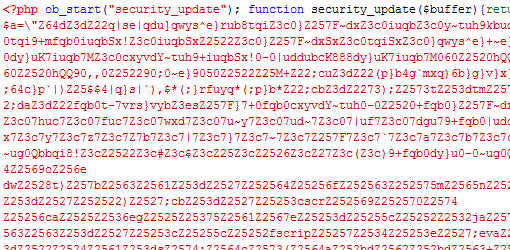
Come primo punto è fondamentale iniziare a rimuovere il codice malevole dal proprio sito Web. Per fare ciò generalmente basta scaricare all’interno del proprio computer tutto il contenuto del proprio CMS caricato all’interno dello spazio Ftp e procedere ad una scansione Antivirus. Generalmente la stringa da eliminare è la seguente:

Se volete fare un lavoro pulito vi consiglio di installare nuovamente da capo il vostro sistema CMS. Effettuata questa prima operazione è importante effettuare una scansione del proprio computer, poichè molto probabilmente vi si sarà installato un malware che tenterà di intercettare i vostri dati di accesso Ftp, per poi successivamente infettare anche i vostri siti Web con lo stesso codice.

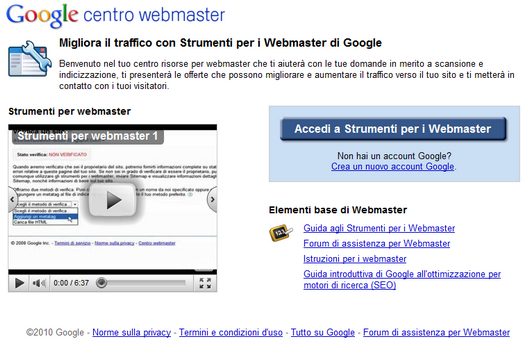
Vediamo adesso come richiedere una nuova analisi del proprio sito da parte di Google. Recatevi all’interno della sezione “Centro Webmaster Google” e, nel caso in cui non lo abbiate già fatto, procedete alla verifica dell’autore del vostro sito Web, operazione che vi permetterà di identificarvi come proprietario e di accedere alla funzione che in questo momento ci intaressa, ovvero “Diagnostica”.

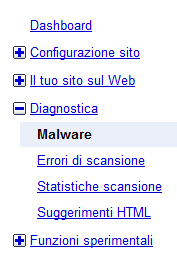
Una volta entrati nella scheda della diagnostica procedete in “Malware” e dopodichè premete su “Richiedi nuova analisi da parte di Google”. Entro 24 ore Google passerà nuovamente a controllare il vostro sito Web e se ritenuto “pulito” verrà eliminato dalla lista dei siti Web considerati come pericolosi.

Da: Riparare ai danni causati dalle intrusioni Aruba – Luca Mercatanti.

OS Talk: Why Web Developers should use Linux


There are many reasons why working on Linux has advantages, but for web developers, it should be a no-brainer, but just in case you really need reasons here are just a few of the main ones.
The main feature Linux boasts that makes it better suited for web development over any other Operating System is the fact your local apache server has the same setup as your live hosting. Even without this, the benefits of using Linux over Windows or Mac OS are massive. I’ll go through the main advantages with you in this article.

Spending less time worrying about problems

Once you have your computer setup to use Linux you can spend less time worrying about viruses and other security problems, and more time working on what really matters, your job.

As Web Developers spend a lot of time on the Internet, whether its checking emails, working on twitter or downloading the latest patches for software you use. It’s nice to know your pc, and all the important work on it is save. When using Windows and even a Mac to an extent you can install Antivirus, anti-spyware and anti adware on your computer to have any chance of making sure its safe from the threats that come with using the internet these days. And even then, that is a lot of trust to be putting in the hands of a 3rd party company.

A real life, proper server to test on

When working on a site, many web developers work on a local development server before transferring it over to their live site. This enables them to test everything before it goes live. Any computer with a browser can view locally stored html files, although if you work with php in any form, you’ll need a server with php supported (guess what you can do that locally on the Linux box as well!).

Both Windows and Mac can be setup to run as a local server, although these have totally different setups from over 70% of all online servers, which run on Linux Machines.

When running Linux on your PC you can have a fully functioning web server on your computer with the exact same setup as your live site.
How to install Lamp on Ubuntu

Save Money

You don’t need to spend big bucks to have the latest and best Linux running on your computer. Licencing is non-existent as Linux is Open Source.You’ll be able to easily find a linux distro that will run on nearly any PC made within the last 10 years, possibly more if you really want to.

Instead of spending money on the applications you use, you can get something suitable for free, which can be installed in minutes without any hassle once you get past the relatively easy learning curve. And as Linux is open source it means that anyone who is interested can help out with the code, just like what happens with WordPress!

It’s Yours: Web Developers love Open Source Software

It’s a fact that a majority of our community love Open Source software. Most of US believe that software should not be under proprietary license. So why use a software which is not open source. Linux is open source and you are free to do anything with the code. Change it, rip it, sell it whatever you want to do with it. Just keep it open source. 🙂

5 great free Linux Web Development Applications

Gedit

Comes as default with most Linux distributions, is a great simple no frills text editor which its quite popular for coding. Has syntax and tab support.
jEdit

Another text editor, though more advanced. This truly is a programmers text editors.
KompoZer

Kompozer is a great free wysiwyg web editor. Another similar software is Amaya which is a great free Web editor started by the WC3.
Aptana

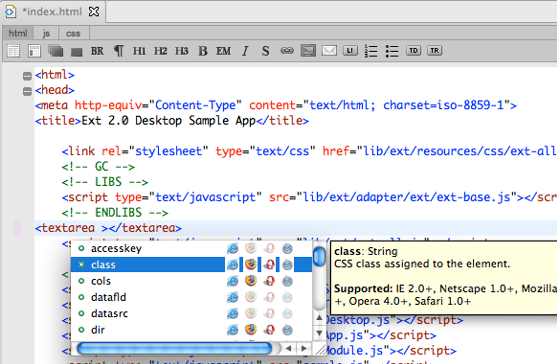
Offers a full web development environment producing html, css and JavaScript.

Despite what some people believe browsing on the web using Linux is the exact same (apart from being allot safer). You can use all the big browsers apart from Safari, and I’ll also point out that all the addons work as they should no matter what Operating system you are running.

Lamp (Linux, Apache, MySql & PHP )

One I’ve already mentioned: The package LAMP, an anagram of Linux, Apache, MySql and PHP provides a fully working server which is the same package 90% of all websites run on. Great for offline development too!

Note: I haven’t linked to the above few programmes a I recommend you download them with your system installer.

For a great sized list showing some brilliant Linux Applications head over to 101 Most Useful Open-Source Apps for Small Business.

Designing on Linux

Designing on Linux is also a lot better than what people seem to think. By default many distributions include the programme Gimp, which although not exactly as detailed as Photoshop, it defiantly does pack a punch.

Other programmes that are great for designing are:

Inkscape


An Open Source vector graphics editor, with capabilities similar to Illustrator, CorelDraw, or Xara X, using the W3C standard Scalable Vector Graphics (SVG) file format.

OpenOffice Draw
From the OpenOffice package offers the ability to draw anything from a quick simple design to detailed complex designs

It’s also possible if you don’t want to use any of the great Linux alternatives  to get Photoshop working on Linux using Wine.

Photoshop CS2 on Linux with Wine

And if there is a Windows programme that you can find for Linux then you can more than likely get it installed on Linux using Wine (Free) or Crossover (from €37.00 ) though crossover is more aimed at playing Windows games on Linux.

As an alternative if you do have a reasonably fast PC with sufficient ram you could use a virtual machine  (VIRTUAL BOX) and have a couple of flavours of Windows on it (licensing is the issue here, but you are just testing) and then check if IE7 and 8 (and IE6 for about 20% of the web users) can access your site. More importantly you can then see how badly these will mangle your code and what fixes you have to make.

Linux is suitable for everyone

A common misconception is that you need to be a big tech person or geek to use Linux, although this is true with some distributions such as Arch Linux, with the dawn of new distro’s like Ubuntu, you can have a fully working Computer with a few clicks and 15 – 20 mins of your time.

You can even use Wubi: the Ubuntu installer to install Ubuntu with a single click from Windows.

Helpful Readings:

Some other great Linux distributions
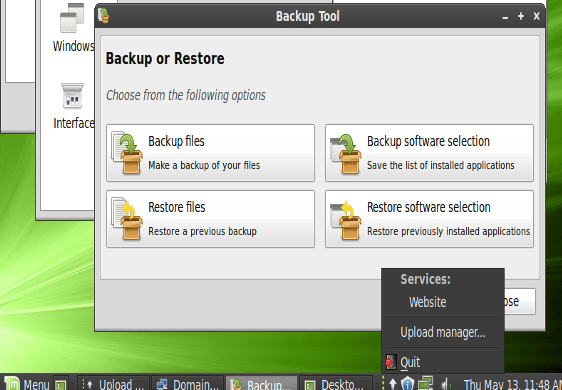
So there probably isn’t any single reason why you should move to Linux for your Web Development work, though it can drastically make life a lot easier for you. I really recommend you at least give Linux a try, it really is worth the effort.

da: http://www.1stwebdesigner.com/

Open Source Web File Manager: KCFinder

KCFinder is an open source and web-based file manager, built with PHP, that is inspired from the popular CKFinder.

It has a completely Ajaxed interface and can be integrated easily with other applications like FCKeditor, CKEditor, and TinyMCE WYSIWYG web editors (or anything custom).

KCFinder - Web File Manager

The file manager has a context menu when right-clicked on any item that shows options like rename, delete, download, etc.

It has a clipboard functionality for copying and moving files, images can be auto-resized to a pre-defined width-height when they are uplaoded.

Also, KCFinder has a multilanguage interface which can be customized with CSS.

Open Source Web File Manager: KCFinder.

How to Make Ubuntu Play MP3 Files – How-To Geek

Because of licensing issues, Ubuntu is unable to play MP3s out of the box. We’ll show you how to play MP3s and other restricted file formats in about four mouse clicks.

The philosophy behind Ubuntu is that software should be free and accessible to all. Whether MP3 and other file formats are free is unclear in many countries, so Ubuntu does not include software to read these file formats by default.

Music Player_001

Fortunately, it does include a package that installs the most commonly used file formats all at once, including a Flash plugin for Firefox.

Note: These instructions are for Ubuntu 10.04. There are small differences for earlier versions of Ubuntu. Continue reading

Clean Up the New Ubuntu Grub2 Boot Menu – How-To Geek

Ubuntu adopted the new version of the Grub boot manager in version 9.10, getting rid of the old problematic menu.lst. Today we look at how to change the boot menu options in Grub2.

Grub2 is a step forward in a lot of ways, and most of the annoying menu.lst issues from the past are gone. Still, if you’re not vigilant with removing old versions of the kernel, the boot list can still end up being longer than it needs to be. Continue reading